Step 1
Provide vehicle photos
Choose the vehicle photos you want to prepare for presentation.

CleanAI
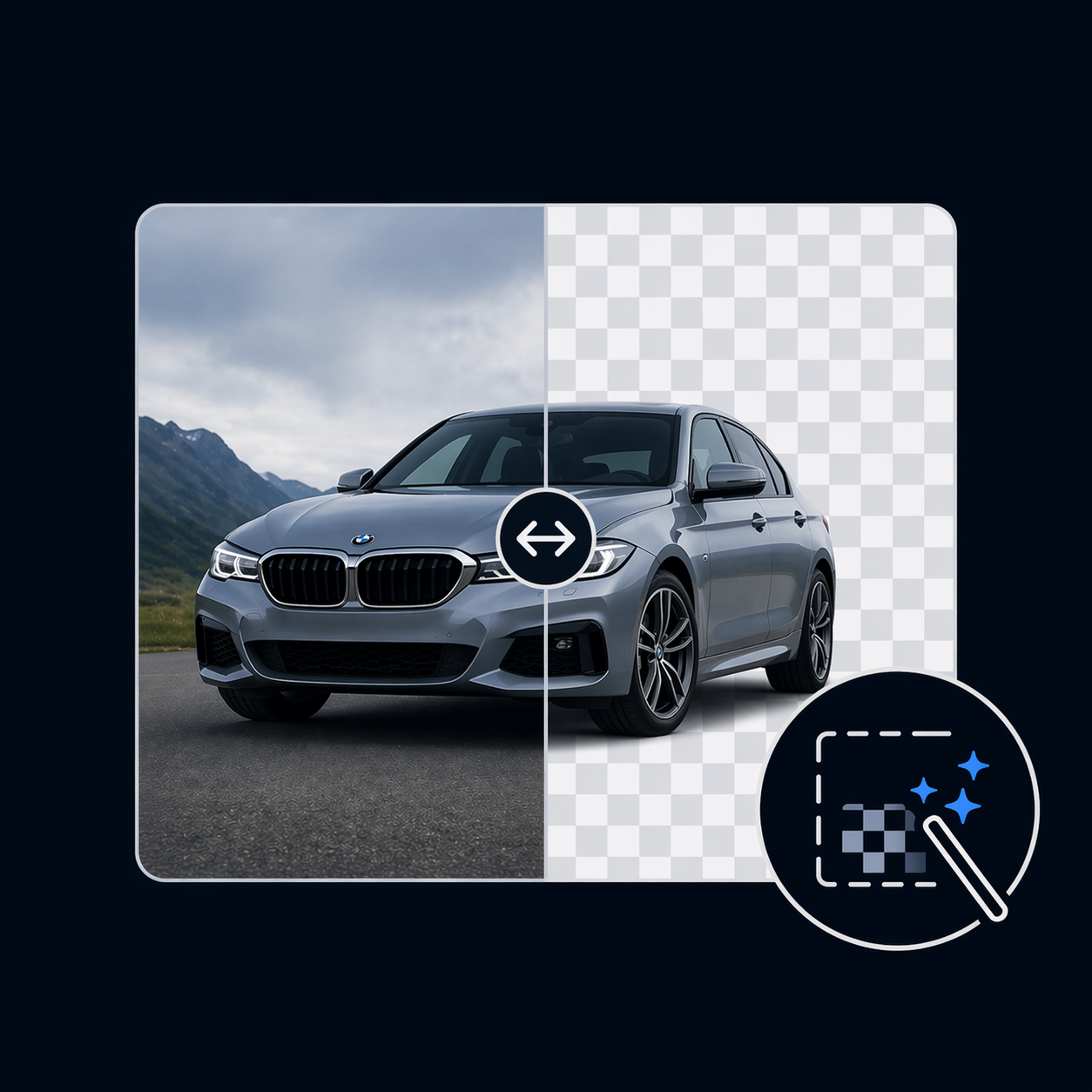
CleanAI removes distracting backgrounds from vehicle photos to create a consistent, professional look. Choose a background color and, if you like, add your logo to the finished image.
Step 1
Choose the vehicle photos you want to prepare for presentation.
Step 2
CleanAI separates the vehicle from a distracting background and prepares the image for reuse.
Step 3
Choose a background color. You can also add your own logo and select its position.
Use polished vehicle photos in listings with external providers and create a consistent presentation across your vehicles.
Prepare vehicle photos in a consistent style for internal inventory and downstream systems.
Set the background color and choose whether to add your own logo. You can select from several logo positions.
VisionAI
If your vehicle photos are inside PDF appraisals, VisionAI can extract the images from the document first. You can then prepare them further with CleanAI.
Learn more about VisionAI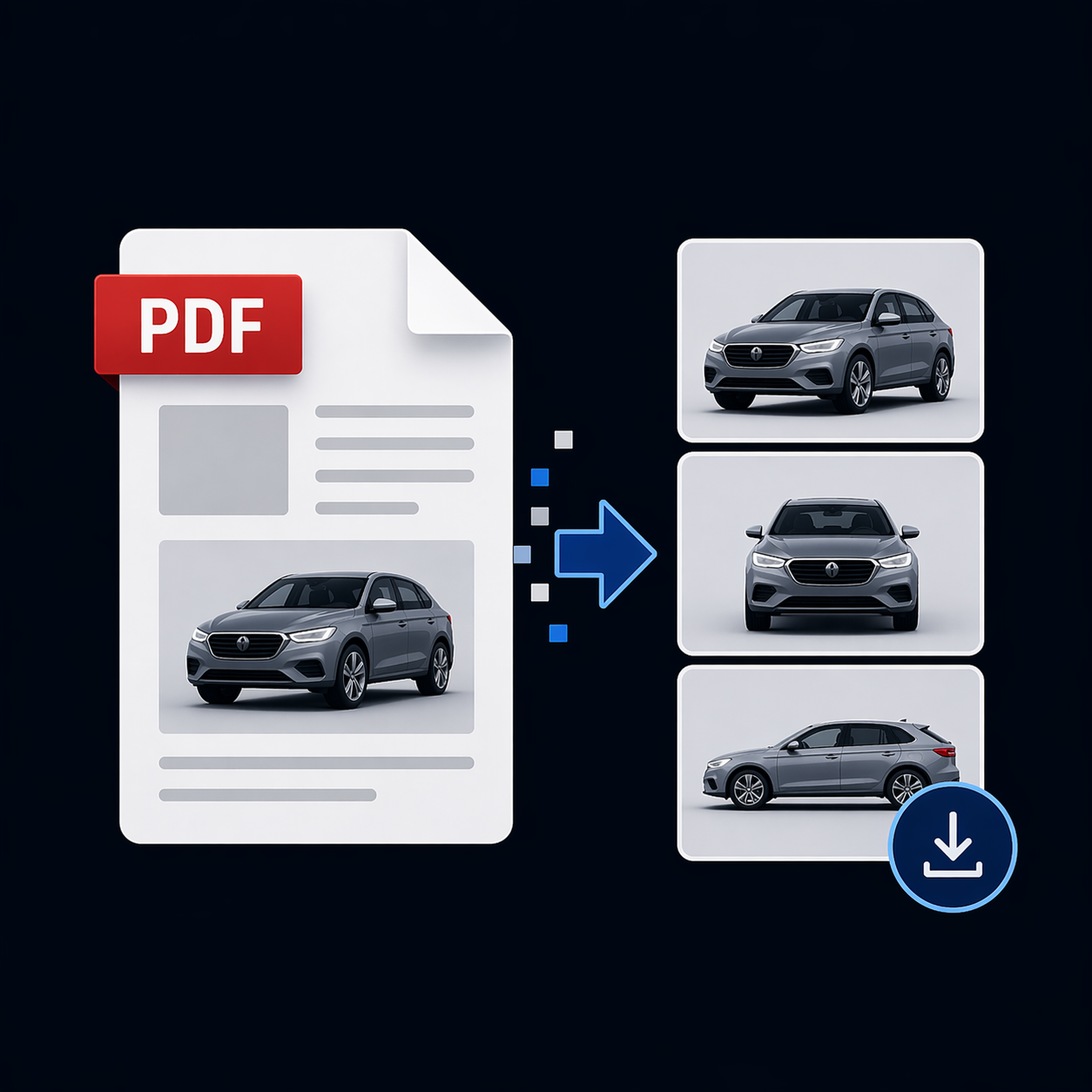
Get started with CleanAI and prepare vehicle photos for listings and your existing workflows.
Register for free